Process for Requesting Hardware and Software
See all articlesHow to Request New Hardware
Need a new laptop or other hardware for your work? Our IT department is here to assist you in acquiring the right tools to maximize your productivity. This guide provides a step-by-step process for requesting new hardware within our organization.
Step 1: Understand Hardware Renewal Policies
Before requesting new hardware, familiarize yourself with our hardware renewal policies. Generally, hardware like laptops and desktops are due for renewal every four years. However, exceptions can be made for malfunctioning or outdated devices.
- Policy Documentation: Review our hardware renewal policy here.
Step 2: Get Manager Approval (If Necessary)
For certain high-value devices or early renewals, you may need your manager’s approval.
- Approval Process: Discuss your hardware needs with your manager. If they agree, ask them to send an approval email to the IT department or include them in your request.
- Documentation: Keep a record of the approval for your request submission.
Step 3: Check the Service Catalog
Explore our service catalog to see the available hardware options. Consider your job role and requirements when choosing a device.
- Service Catalog Access: Visit our service catalog here to view available hardware options and specifications.
- Guidance: If you need advice on selecting the right hardware, contact IT support.
Step 4: Submit Your Hardware Request
Once you’ve selected your hardware and obtained necessary approvals, you can submit a request through one of the following channels:
- IT help center: The most efficient way is through our service catalog form or the IT help center here. You can attach any necessary approval documentation.
- Email: Send an email to the IT department at it-support@company.com with your hardware choice, justification, and manager’s approval (if required).
- In-Person: Visit the IT department within key hubs for personal assistance with your request.
Step 5: IT Department Review and Processing
After receiving your request, the IT department will review it based on current policies and availability.
- Confirmation: You’ll receive a confirmation email once your request is approved.
- Timeline: Hardware delivery and setup typically take 1-2 weeks after approval.
Additional Notes
- Urgent Needs: For urgent hardware requests, please mark your submission as ‘High Priority’ and provide a brief explanation.
- Special Requirements: For specialized hardware not listed in the service catalog, please provide detailed requirements in your request.
Conclusion
Our IT department is committed to providing you with the necessary tools to succeed in your role. By following these steps, you can smoothly navigate the process of requesting new hardware.
Additional Resources
Software Installations and Updates
See all articlesInstalling and Updating Key Software Applications
Streamlining Your Software Setup and Maintenance
Staying current with software updates is crucial for the security and functionality of your work tools. This guide will walk you through the process of installing and updating key software applications, ensuring you have access to the latest features and security patches.
Installing New Software
Start by downloading the necessary software from a trusted source. Once downloaded, run the installer and follow the on-screen instructions. Be sure to read through any terms and conditions before agreeing. After installation, take some time to familiarize yourself with the new software’s features and settings.
Managing Software Updates
Regular updates can fix bugs, improve functionality, and enhance security. Most applications offer an option to enable automatic updates. If you prefer manual updates, regularly check for available updates in the software's settings menu.
Troubleshooting Installation and Update Issues
Common issues during installation include insufficient storage space or compatibility problems. Ensure that your system meets the software's requirements and that you have adequate storage space available. If an update fails to install, try restarting your device and attempting the update again.
Feedback and Support: For assistance with software installation or updates, please contact the IT team at IT@[companyname].com or submit a ticket. Your feedback is appreciated and can be submitted through our internal feedback system.
Troubleshooting
See all articlesInterpreting Protein Quantification Results: A Guide for PhD Researchers
Author: Dr. Maya Patel, Molecular Biologist
Introduction
Protein quantification is a fundamental step in many molecular biology workflows. As a PhD researcher, you’ve likely generated protein concentration data using methods like Bradford, BCA, or UV absorbance. But how can you be confident your results truly reflect your sample’s protein content? This guide walks through key considerations and common pitfalls to help you interpret protein quantification results with assurance and clarity.
Understanding Your Quantification Data
Protein assays measure how much protein is in your sample by producing a signal—often colorimetric or absorbance—that correlates with protein concentration. However, several factors can affect the accuracy and interpretation of these signals:
1. Standard Curve Reliability
Your standard curve forms the baseline for interpretation. Ensure the curve is:
- Linear over the range of concentrations tested
- Prepared fresh and accurately pipetted
- Measured in the same buffer as your samples
Small deviations in standards can skew your sample readings.
2. Sample Matrix Effects
Components in your sample buffer (detergents, salts, reducing agents) can interfere with color development or absorbance, causing over- or underestimation. Always include appropriate blanks and consider matrix-matched standards when possible.
3. Assay Sensitivity and Dynamic Range
Be mindful of the assay’s detection range. Too dilute or too concentrated samples may fall outside the linear detection window, leading to inaccurate extrapolations. Dilute samples when necessary and rerun to confirm.
4. Replicates and Statistical Confidence
Multiple technical replicates reduce measurement variability. Calculate mean and standard deviation, and consider the coefficient of variation (CV) to evaluate assay precision.
Troubleshooting Common Scenarios
| Scenario | Possible Cause | Suggested Action |
|---|---|---|
| Inconsistent replicates | Pipetting errors, sample clumping | Use multichannel pipettes, vortex before use |
| Unexpectedly high absorbance | Contaminants, matrix interference | Check blanks, purify samples |
| Standard curve nonlinear | Old reagents, incorrect dilutions | Prepare new standards, double-check pipetting |
Best Practices for Clear Interpretation
- Always run a fresh standard curve with every assay batch.
- Include negative controls to detect background signals.
- Use matched sample diluents for standards whenever possible.
- Document sample prep details meticulously for reproducibility.
Conclusion
Interpreting protein quantification requires a balance of understanding assay principles, potential confounders, and rigorous technique. Equipped with these insights, you can approach your data with increased confidence and make informed decisions for your research.
If you have specific questions about your assay or results, feel free to reach out for tailored advice.
Why won't Firefox work on my mobile device?
Firefox is also available on Android and Apple phones and tablets. Use it with a Mozilla account to sync your bookmarks, passwords and browsing history across your desktop and mobile devices.
Android devices
Firefox is compatible with Android 5.0 or above devices. Android versions older than 5.0 are no longer supported. You can download Firefox for Android or search for Firefox in the Google Play store.
Important: If you search for Firefox in the Google Play store and don't find Firefox for Android, your device may not be compatible.
iPads, iPhones and iPod touch devices
Firefox is available on iPhone, iPad and iPod touch devices with iOS 8.2 and above. For more info, see Is Firefox available for iPhone or iPad in my language?
Other mobile devices
Firefox is NOT available for Windows Phone, Windows RT, Bada, Symbian, Blackberry OS, webOS or other operating systems for mobile.
Share this article: http://mzl.la/14wAMgM
Make Firefox your default browser on Windows
Whether you're using Windows 10 or the latest Windows 11, this guide will help you set Firefox as your default browser with minimal fuss. Setting Firefox as your default browser on Windows has become a bit more involved due to changes in how Windows manages default applications. With the release of Firefox version 126, we introduced a new guidance notification feature to help you easily navigate these changes.
How to set Firefox as your default browser
Make Firefox your default browser in Firefox Settings
- In the upper-right corner of your screen, click
 to open the Firefox menu.
 - Select Settings.
- In the General panel, find the Startup section.
- If Firefox isn't currently set as your default browser, you'll see the message Firefox is not your default browser. Click the
 button.
 - If you see this toast notification, it indicates that the one-click default setting did not work, and you will need to take additional steps in your Windows settings.
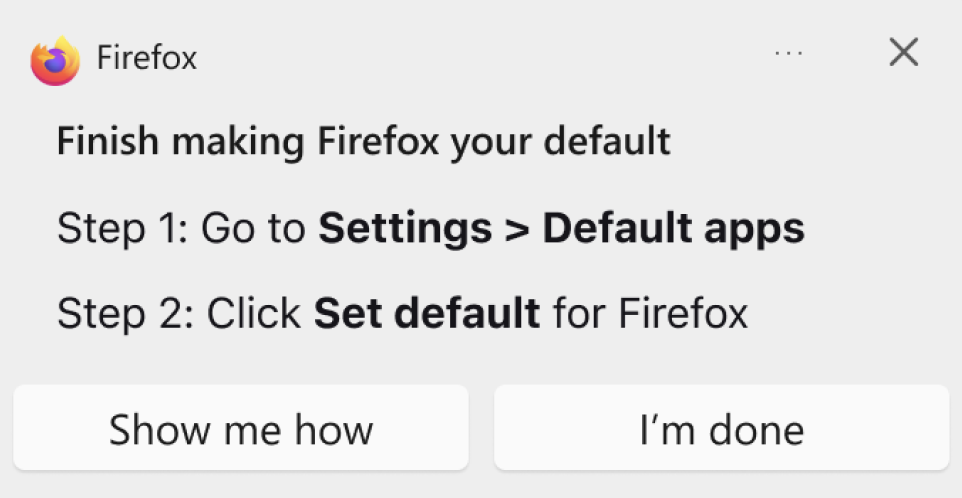
To easily open Firefox later, add a shortcut to your taskbar:
- On your computer, open Firefox.
- At the bottom, in the Windows taskbar, right-click Firefox.
- Click Pin to taskbar.
Manually set Firefox as your default browser in Windows settings
If the guidance notifications do not appear, don't worry. You can manually set Firefox as your default browser by following these steps (click the  to the right of For Windows 10 or For Windows 11 to view the steps):
For Windows 10
- Click the Windows Start button.
- Type "Default apps" into the search bar.
- Select 'Default apps' from the search results.
- In the 'Default apps' menu, find and click on your current default browser listed under 'Web browser'.
- Choose Firefox from the list of available options to set it as your default browser.
To easily open Firefox later, add a shortcut to your taskbar:
- On your computer, open Firefox.
- At the bottom, in the Windows taskbar, right-click Firefox.
- Click Pin to taskbar.
For Windows 11
- Click the Windows Start button.
- Type "Default apps" into the search bar.
- Select 'Default apps' from the search results.
- In the 'Default apps' window, scroll to find Firefox.
- Click on Firefox.
- Set Firefox as the default for each file type or link type you need by navigating through the settings provided.
To easily open Firefox later, add a shortcut to your taskbar:
- On your computer, open Firefox.
- At the bottom, in the Windows taskbar, right-click Firefox.
- Click Pin to taskbar.
Troubleshooting Common Hardware Issues: A Step-by-Step Guide
Efficient Solutions for Your Hardware Challenges
We know facing hardware issues can be a significant hindrance to your day-to-day work. This guide aims to empower you with practical troubleshooting steps for common hardware problems, ensuring you can address issues quickly and effectively.
Identifying Common Hardware Issues
Common signs of hardware problems include a computer failing to boot up, hearing unusual noises from the system unit, or experiencing overheating. Before diving into more complex solutions, it's essential to perform some basic checks. Ensure that your power cables are securely connected and that there's no damage to any external devices.
Basic Troubleshooting Steps
The first step in troubleshooting is often the simplest: restart your device. A reboot can resolve many issues by refreshing the system. If the problem persists, inspect all physical connections. Loose or disconnected cables are often culprits of hardware malfunction.
Advanced Troubleshooting Techniques
For more persistent issues, you may need to delve deeper. For instance, if your system is unusually slow, it might be an issue with the RAM. Utilize your system's built-in diagnostic tools to check the health of your RAM, hard drive, and graphics card.
When to Seek Professional Help
If these steps don’t resolve your issue, it's time to call in the experts. Contact our IT support team and provide them with a detailed description of the problem, any error messages, and the troubleshooting steps you've already taken.
Feedback and Support: If you encounter issues beyond these basic troubleshooting steps, please reach out to IT at IT@[companyname].com. Share your feedback or additional queries through our internal communication channels.
Forgot my Password
If you need help resetting you password, we can help by sending you a link to reset it. Visit Forgot Password. Enter either the email address or username on the account. Select Submit. Check your inbox for a password reset email. Click on the URL provided in the email and enter a new password
Change your password
-
On your Android phone or tablet, open your device's Settings app
Google
- At the top, tap Security.
- Under "Signing in to Google," tap Password. You might need to sign in.
- Enter your new password, then tap Change Password.
 Google
 00:00
02:29
Best Practices for Maintenance
See all articlesBest Practices for Software Maintenance and Trouble-Free Operation
Ensuring Optimal Performance of Your Software Tools
Regular software maintenance is key to a smooth and efficient working experience. This article outlines best practices for maintaining your software, ensuring it operates optimally and remains trouble-free.
Routine Software Maintenance Tasks
Consistently updating your software to the latest version is vital. Periodically clear caches and temporary files to free up space and improve software speed. Regularly check for and uninstall any unused software to keep your system clutter-free.
Data Backup and Recovery
Data loss can be catastrophic. Implement a robust data backup strategy, including regular backups to a secure location. Regularly test your backup systems to ensure they are functioning correctly and that your data can be recovered in the event of a system failure.
Optimizing Software Performance
To maintain optimal performance, monitor your software for any signs of slowing down. Tools like disk defragmenters and system optimizers can help keep your software running smoothly. Be proactive in managing the resources your software uses – close unused applications and tabs to free up memory and processing power.
Ensuring Security and Compliance
Keep your antivirus and anti-malware software updated to protect against the latest threats. Adhere strictly to the company’s IT policies, especially regarding software downloads and data handling, to ensure compliance and protect sensitive information.
Feedback and Support: For additional guidance or to report any software maintenance issues, please contact our IT support team at IT@[companyname].com or submit a ticket. We also welcome your suggestions for improving our software maintenance practices.
Facilities Support
See all articlesHeating & Cooling
The college’s air conditioning system is controlled through a sophisticated computer network that monitors building and outdoor temperatures and campus electrical load demands. Estrella Mountain’s HVAC technicians are able to monitor and modify room temperatures as well as make other program adjustments remotely using this system. In keeping with the College's Climate Action Plan every effort is taken to keep office spaces, classrooms and work areas comfortable while recognizing the need to maintain room temperature setpoints that are consistent with this effort.
Report Problems
To report problems or to request room temperatures changes, please use the FACILITIES HELP DESK, or call 623-935-8296
Custodial Services
Briefly here is what to expect from housekeeping.
Daily: The carpets are vacuumed, rest room and tile floors cleaned and sanitized. All countertops and classroom furniture will be cleared off and washed or dusted. White boards and chalkboard surfaces are cleaned. All paper supplies are filled and trash is emptied.
Weekly: Tile floors in lab areas and galley kitchens are spray buffed, and waxed.
Bi-weekly: Spider webs are removed and blinds dusted. Walls are wiped clean and rooms and offices are dusted at above eye level.
Semi-annually or as needed: Carpets extracted, light fixtures cleaned and dusted, furniture finishes repaired, ceiling tiles dusted, HVAC vents cleaned.
Conference Rooms
You will need to provide your own laptop, tablet, or presentation-capable smartphone. Depending on your brand or model, you will need to bring an appropriate VGA adapter to connect your device to the LCD projector. You can order these adapters online or from various chain stores. (our A/V service provider is not responsible for supplying these.)
Or check your device’s user manual or the manufacturer’s website. See more information below.