Troubleshooting
-
Interpreting Protein Quantification Results: A Guide for PhD Researchers
Author: Dr. Maya Patel, Molecular Biologist
Introduction
Protein quantification is a fundamental step in many molecular biology workflows. As a PhD researcher, you’ve likely generated protein concentration data using methods like Bradford, BCA, or UV absorbance. But how can you be confident your results truly reflect your sample’s protein content? This guide walks through key considerations and common pitfalls to help you interpret protein quantification results with assurance and clarity.
Understanding Your Quantification Data
Protein assays measure how much protein is in your sample by producing a signal—often colorimetric or absorbance—that correlates with protein concentration. However, several factors can affect the accuracy and interpretation of these signals:
1. Standard Curve Reliability
Your standard curve forms the baseline for interpretation. Ensure the curve is:
- Linear over the range of concentrations tested
- Prepared fresh and accurately pipetted
- Measured in the same buffer as your samples
Small deviations in standards can skew your sample readings.
2. Sample Matrix Effects
Components in your sample buffer (detergents, salts, reducing agents) can interfere with color development or absorbance, causing over- or underestimation. Always include appropriate blanks and consider matrix-matched standards when possible.
3. Assay Sensitivity and Dynamic Range
Be mindful of the assay’s detection range. Too dilute or too concentrated samples may fall outside the linear detection window, leading to inaccurate extrapolations. Dilute samples when necessary and rerun to confirm.
4. Replicates and Statistical Confidence
Multiple technical replicates reduce measurement variability. Calculate mean and standard deviation, and consider the coefficient of variation (CV) to evaluate assay precision.
Troubleshooting Common Scenarios
Scenario Possible Cause Suggested Action Inconsistent replicates Pipetting errors, sample clumping Use multichannel pipettes, vortex before use Unexpectedly high absorbance Contaminants, matrix interference Check blanks, purify samples Standard curve nonlinear Old reagents, incorrect dilutions Prepare new standards, double-check pipetting Best Practices for Clear Interpretation
- Always run a fresh standard curve with every assay batch.
- Include negative controls to detect background signals.
- Use matched sample diluents for standards whenever possible.
- Document sample prep details meticulously for reproducibility.
Conclusion
Interpreting protein quantification requires a balance of understanding assay principles, potential confounders, and rigorous technique. Equipped with these insights, you can approach your data with increased confidence and make informed decisions for your research.
If you have specific questions about your assay or results, feel free to reach out for tailored advice.
-
Why won't Firefox work on my mobile device?
Firefox is also available on Android and Apple phones and tablets. Use it with a Mozilla account to sync your bookmarks, passwords and browsing history across your desktop and mobile devices.
Android devices
Firefox is compatible with Android 5.0 or above devices. Android versions older than 5.0 are no longer supported. You can download Firefox for Android or search for Firefox in the Google Play store.
Important: If you search for Firefox in the Google Play store and don't find Firefox for Android, your device may not be compatible.iPads, iPhones and iPod touch devices
Firefox is available on iPhone, iPad and iPod touch devices with iOS 8.2 and above. For more info, see Is Firefox available for iPhone or iPad in my language?
Other mobile devices
Firefox is NOT available for Windows Phone, Windows RT, Bada, Symbian, Blackberry OS, webOS or other operating systems for mobile.
Share this article: http://mzl.la/14wAMgM -
Make Firefox your default browser on Windows
Whether you're using Windows 10 or the latest Windows 11, this guide will help you set Firefox as your default browser with minimal fuss. Setting Firefox as your default browser on Windows has become a bit more involved due to changes in how Windows manages default applications. With the release of Firefox version 126, we introduced a new guidance notification feature to help you easily navigate these changes.
How to set Firefox as your default browser
Make Firefox your default browser in Firefox Settings
- In the upper-right corner of your screen, click
 to open the Firefox menu.
 - Select Settings.
- In the General panel, find the Startup section.
- If Firefox isn't currently set as your default browser, you'll see the message Firefox is not your default browser. Click the
 button.
 - If you see this toast notification, it indicates that the one-click default setting did not work, and you will need to take additional steps in your Windows settings.
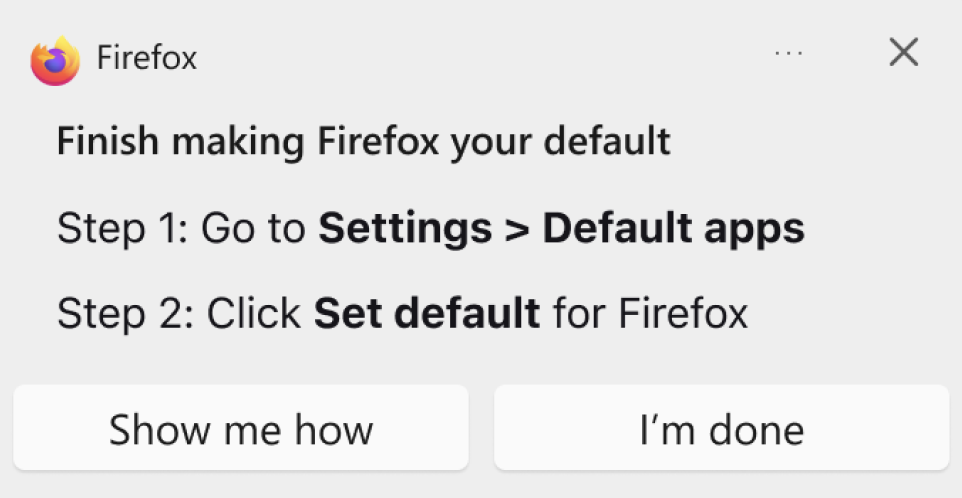
To easily open Firefox later, add a shortcut to your taskbar:
- On your computer, open Firefox.
- At the bottom, in the Windows taskbar, right-click Firefox.
- Click Pin to taskbar.
Manually set Firefox as your default browser in Windows settings
If the guidance notifications do not appear, don't worry. You can manually set Firefox as your default browser by following these steps (click the
 to the right of For Windows 10 or For Windows 11 to view the steps):
For Windows 10
- Click the Windows Start button.
- Type "Default apps" into the search bar.
- Select 'Default apps' from the search results.
- In the 'Default apps' menu, find and click on your current default browser listed under 'Web browser'.
- Choose Firefox from the list of available options to set it as your default browser.
To easily open Firefox later, add a shortcut to your taskbar:
- On your computer, open Firefox.
- At the bottom, in the Windows taskbar, right-click Firefox.
- Click Pin to taskbar.
For Windows 11
- Click the Windows Start button.
- Type "Default apps" into the search bar.
- Select 'Default apps' from the search results.
- In the 'Default apps' window, scroll to find Firefox.
- Click on Firefox.
- Set Firefox as the default for each file type or link type you need by navigating through the settings provided.
To easily open Firefox later, add a shortcut to your taskbar:
- On your computer, open Firefox.
- At the bottom, in the Windows taskbar, right-click Firefox.
- Click Pin to taskbar.
- In the upper-right corner of your screen, click
-
Troubleshooting Common Hardware Issues: A Step-by-Step Guide
Efficient Solutions for Your Hardware Challenges
We know facing hardware issues can be a significant hindrance to your day-to-day work. This guide aims to empower you with practical troubleshooting steps for common hardware problems, ensuring you can address issues quickly and effectively.
Identifying Common Hardware Issues
Common signs of hardware problems include a computer failing to boot up, hearing unusual noises from the system unit, or experiencing overheating. Before diving into more complex solutions, it's essential to perform some basic checks. Ensure that your power cables are securely connected and that there's no damage to any external devices.
Basic Troubleshooting Steps
The first step in troubleshooting is often the simplest: restart your device. A reboot can resolve many issues by refreshing the system. If the problem persists, inspect all physical connections. Loose or disconnected cables are often culprits of hardware malfunction.
Advanced Troubleshooting Techniques
For more persistent issues, you may need to delve deeper. For instance, if your system is unusually slow, it might be an issue with the RAM. Utilize your system's built-in diagnostic tools to check the health of your RAM, hard drive, and graphics card.
When to Seek Professional Help
If these steps don’t resolve your issue, it's time to call in the experts. Contact our IT support team and provide them with a detailed description of the problem, any error messages, and the troubleshooting steps you've already taken.
Feedback and Support: If you encounter issues beyond these basic troubleshooting steps, please reach out to IT at IT@[companyname].com. Share your feedback or additional queries through our internal communication channels.
-
Forgot my Password
If you need help resetting you password, we can help by sending you a link to reset it. Visit Forgot Password. Enter either the email address or username on the account. Select Submit. Check your inbox for a password reset email. Click on the URL provided in the email and enter a new password
Change your password
-
On your Android phone or tablet, open your device's Settings app
Google
- At the top, tap Security.
- Under "Signing in to Google," tap Password. You might need to sign in.
- Enter your new password, then tap Change Password.
00:0002:29 -
 Google