Suite Basics
-
About Zendesk Channels
Channels are the ways that you engage with your customers (how they create support requests and how you communicate with them). You choose and configure the channels you want to support. Regardless of the channel by which new support requests are submitted, all requests become tickets that agents manage in Zendesk Support.
Admins are able to add channels using both the admin settings in Support and the Channels page in the Admin Center.
Zendesk provides the following channels:For help using Zendesk Explore to report on ticket channels, see Understanding ticket channels in Explore.
Email
The Zendesk Support email channel enables customers to send email directly to your support email address (for example, support@yoursubdomain.zendesk.com). Email you receive for Zendesk Support becomes tickets. Your Zendesk Support account allows for an unlimited number of email addresses within your Zendesk domain. In other words, you can use as many email address variations as you need.

Accepting support requests via external email addresses is also supported. If you already have, or want to support, external email addresses, you can forward email received at those addresses to equivalent addresses in your Zendesk domain.

In addition to receiving support requests at your external email addresses and then forwarding that email to your Zendesk account, you can also configure your email channel to process all outgoing email as if it were coming from your own email domain, rather than your Zendesk account domain. Using your own domain requires a little more set up on your part, and much of it is done outside of Zendesk, maybe requiring help from your domain administrator.
All of your email communication is sent using a template that you can customize. The template is in both HTML and plain text. You can customize the template to match your branding. You can also make some minor modifications to the wording.
You can also set up Zendesk Support business rules to generate automatic email replies at each stage in the workflow, such as updating the ticket, solving the ticket, and so on.
For more information about configuring your email channel, see Setting up your email in Zendesk.
Help center
Your help center, which you create using Zendesk Guide, provides your end users with a complete self-service support solution that includes your knowledge base articles and several options for contacting you for support.
Your help center includes a web form that your end users can use to submit a support request. Agents can also create tickets from the comments that are added to the articles and community posts in your help center. Replies from agents are added as comments.
Your knowledge base articles and a support contact form that also be embedded into any website and also mobile apps. See Web Widget (Classic) and Mobile SDK below.
Your knowledge base articles can also be used by Web and mobile messaging in tandem with Zendesk bots to automatically assist end users to locate the answers they need. Web messaging and the messaging Web Widget also embed your support solution into websites and mobile apps.
For information about enabling Guide and setting up your help center, see Getting started with Guide.
Web and mobile messaging
Messaging allows you to communicate with customers asynchronously across multiple sessions and devices (the web, mobile devices, and social media apps). The full conversation history, across sessions and devices, is retained.
You can also create a customizable messaging bot using bot builder that guide end users to the answers they seek. The messaging bot suggests relevant articles from your knowledge base to address their issues.

You use the Web Widget as a channel to embed messaging and automated conversation flows using bot builder and messaging bot into your websites and your help center.
For more information, see About messaging.
Social messaging
When you add a social messaging channel to your admin settings in Support or in Admin Center, messages sent to your company’s social messaging channels become tickets in Support. You can send and receive social messages as part of the main ticket conversation flow.
The following social messaging channels are available in Zendesk:
- WhatsApp: A popular chat and voice messaging app with more than 1.5 billion users in over 180 countries. See Adding WhatsApp channels to the Zendesk Agent Workspace.
- LINE: An all-in-one communications app for text, voice, and video calls, moments, photo sharing, and games. See Adding LINE channels to the Zendesk Agent Workspace.
- Facebook: A popular social networking site that you can use for public messaging with your customers. See Setting up your Facebook channel.
- Facebook Messenger: A popular social messaging application from Facebook that you can use for private messaging with your customers. See Setting up your Facebook channel and Adding Facebook Messenger channels to the Zendesk Agent Workspace.
- X (formerly Twitter): A popular social networking service that you can use for public messaging with your customers. See Setting up your X (formerly Twitter) channel.
- X DM: A popular X feature that you can use for private messaging with your customers. See Setting up your X (formerly Twitter) channel and Adding X (formerly Twitter) DM channels to the Zendesk Agent Workspace.
- Instagram Direct: Instagram's private messaging service that allows you to communicate directly with other users. See Adding and configuring Instagram Direct.
- WeChat: A popular, China-based mobile text and voice messaging communication service that you can use for public messaging with your customers. See Adding WeChat social messaging channels.
You can also add more messaging channels to Zendesk. For example, you can also add Viber, Telegram, and Apple Messages for Business. Messages sent to these channels become tickets in the Agent Workspace. When an agent responds, the comment appears as a reply in the user's messaging app. See Adding Sunshine Conversations channels.
Voice
The Zendesk Talk channel integrates live telephone (voice) support into your Zendesk account. You select a telephone number for incoming calls and set the call queuing options and recorded greetings. You can also customize call greetings.
Agents make themselves available to receive calls and their conversations with customers are recorded and added to tickets. When agents are unavailable, customers leave voicemail messages that automatically become tickets containing the voicemail recording and a transcription. Agents can answer calls through the web browser or they can forward calls to another number.
For information about setting up your voice channel, see Enabling the Talk channel and configuring general settings. For information about using Talk, see Using Zendesk Talk.
Text
Text enables you to respond to inbound SMS text messages, automate alerts, or send proactive texts to your customers.
Whenever you receive a text, it automatically creates a ticket in Support meaning that you can apply all of the advantages of automated workflows, reporting, and history to your text support.
For information about setting up Text, see Getting started with Text.
Live chat
Zendesk Chat enables customers to initiate live chat with an agent. Chat sessions become tickets that agents can update after the chat session. You can add Zendesk Chat to any website or help center.
In addition to responding to end-user chats, you can review a real-time list of visitors, what page they're on, how they got to your website, and other details. Using this information, agents can provide proactive support by reaching out to targeted visitors, like ones with items in their shopping cart but are taking too long to complete their purchase.
Agents can also chat with other agents, either one-on-one or by pulling them into a conversation with a visitor.
For information about setting up Zendesk Chat, see Setting Up Zendesk Chat.
Tip: Fine tuning: Check out Sam Gervalino's Fine tuning: Setting up chat and knocking it out of the park more information on how you can maximize your chat support.Web Widget (Classic)
The Web Widget (Classic) enables you to embed Zendesk Support options in your website or help center so your customers can get help without leaving your website or help center. Your customers can get quick access to:
- Search for knowledge base articles
- Live chat with an agent
- Contact form to submit a ticket
The widget appears in the bottom-right corner of your website or help center, and your customers click the widget to access support options.

You configure the components you want in the widget, then add the widget code to your website or help center. After you add the code, you manage changes from your Zendesk. You must be an administrator to set up and manage Web Widget (Classic).
For more information about Web Widget (Classic), see the following pages:If you are using messaging for a website or help center, Web Widget (Classic) is replaced with the messaging Web Widget.
Mobile SDK
The Mobile SDK enables you to embed Zendesk support options in your native app so your customers can get help directly in your app. Your customers can get quick access to:
- Create tickets using a contact form in your app
- Contact agents for support via messaging or live chat
- View and comment on existing tickets in-app, without switching to email
- Browse and search your help center knowledge base in-app, without being redirected to a browser
- Rate your app in the app store or send you direct feedback
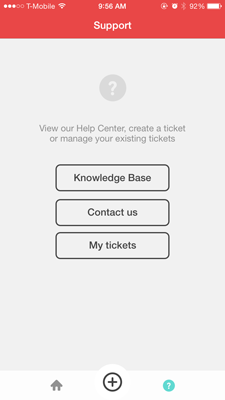
After the SDK is integrated in your app, changes are managed from your Zendesk and automatically reflected in the SDK. Adding the SDK to your app is done outside of Zendesk by your developers using a code snippet generated in Zendesk.
For more information, see the following pages:- Embedding customer service in mobile apps with the Support SDK
- SDK developer documentation for iOS or Android.
API
If you're a developer, you can access Zendesk functionality through the Zendesk API. For example, you can create a new ticket using the API instead. See the API documentation.
The Apps and integrations > APIs > Zendesk API page in Admin Center enables you to configure how API requests are authenticated as well as track API activity against your rate limit.
Reports for the Ticket Update Via or Ticket Event Via attribute may return web service, which refers to the API channel. This means that the ticket or ticket update came through API, via an integration or app that you downloaded from the Marketplace (for example, CRM, JIRA, or Slack), or some other workflow that you have set up.
For more information about the API channel, see Managing access to the Zendesk API.
Channel integrations
As well as the channels that are built into Zendesk products, you can also add apps that offer additional channels by connecting to many popular platforms on the web. These apps let your agents respond to messages, reviews and comments just like they do with any other ticket.
Remember, you can also use the Channel framework to create your own channels.
To browse the available channel integrations, see the Channels section in the Zendesk Marketplace.
Computer telephony integration
CTI (Computer Telephony Integration) integrations offer a way to connect Zendesk with a third-party telephony system using the Talk Partner Edition Developer API. Tickets created from a CTI are included in this channel. For more details, see Understanding Talk Partner Edition.
Closed tickets
Customers can create a new ticket by replying to an old ticket that's in the Closed status. When a ticket is closed, it can no longer be changed in any way. This means that if a customer replies to an email notification from that old, closed ticket, the ticket will not be re-opened; a follow-up ticket will be created instead.
When a follow-up ticket is created from a closed ticket, Closed Ticket appears as the channel within the ticket itself. At the top of that ticket, you'll see information about the old ticket that the new one was created from. You can click on the old ticket number to view the original, closed ticket.
For more information, see Creating a follow-up for a closed ticket.
In Explore, follow-up tickets are reported through two different channels, depending on which attribute you're using:
- Closed Ticket: The Update channel attribute in the Updates history dataset uses this channel value.
- Web: The Ticket channel attribute in the Support datasets uses this channel value.
For more information, see Understanding ticket channels in Explore.
-
Zendesk Glossary
This glossary describes key Zendesk concepts, terminology, and products It's a good place to get started learning how to set up and use your Zendesk products.
@ - A - B - C - D - E - F - G - H - I - J - K - L - M - N - O - P - Q - R - S - T - U - V - W - X - Y - Z
@
@mention
@mentions allows agents to "mention" any other agent (but not end users) within a ticket comment. @mentions are available by default in any Zendesk account that has enabled the rich text editor and has CCs enabled on tickets. See Adding other agents to tickets using @mentions.
In the help center knowledge base, you can use @mentions to mention any other user, including end users.
A
Add-on
Add-ons are supplemental features that allow you to customize your Zendesk plans to fit your specific support needs. They are available for Zendesk Suite plans, as well as legacy product plans. See About Zendesk Suite add-ons and About product legacy add-ons.
Add tab
Permanent tab in the top toolbar of the Agent Dashboard (standard agent interface) and the Agent Workspace. Click to quickly create a new ticket, or hover and click to create a new ticket, user, organization, or search, and view your five most recently viewed tickets. See Introduction to the Zendesk Support agent interface (standard agent interface and About the Zendesk Agent Workspace.
Admins
Admins are agents with additional privileges to manage and customize Zendesk accounts. Admins can perform all agent tasks, but they may also do other things like control settings for your instance. See Understanding Zendesk Support user roles.
See also: Guide Admin.
Advisor
This is an agent role on Enterprise plans. Advisors manage the workflow and configure Zendesk. They create or manage shared automations, macros, triggers, and views. They also set up the service level agreements, channels, and extensions. Advisors don't solve tickets, and can only make private comments. See Creating custom roles and assigning agents.
Agent
Agents are the bulk of your support staff. They are assigned tickets and interact with customers as needed to resolve support issues. The agent's role and privileges are defined by admins. See Understanding Zendesk Support user roles.
Agent alias
On Suite Growth and above or Support Professional and above, agents can keep their real names private by setting up an alias that will be used on all communications with ticket requesters. This feature is not available on Team plans. See Adding an agent alias.
Agent collision
Agent collision is a feature that alerts your agents when another agent is viewing and possibly updating the same ticket, to help prevent agents from trying to make updates to the same ticket at the same time. See Avoiding agent collision.
Agent escalation
In an automated conversation, passing the customer to a live agent. Also called agent transfer.
Agent interface
The agent interface is what agents and admins see when they log into Zendesk. From the agent interface, you can access and manage tickets. The latest version of the agent interface is called Agent Workspace. The version of the agent interface prior to Agent Workspace is referred to as the standard agent interface. See About the Zendesk Agent Workspace and Introduction to the Zendesk Support agent interface (standard agent interface).
Agent signature
An agent signature is a standard text signature that can be appended to all public ticket comments and outgoing emails made by agents. Agents can customize their signature on their profile page. See Adding an agent signature to ticket email notifications.
Agent transfer
See Agent escalation.
Agent Workspace
Agent Workspace is the latest version of the agent interface. It is a unified space for agents to manage and respond to customer support requests. Also referred to as agent workspace or the workspace. See About the Zendesk Agent Workspace.
Allowlist
The allowlist is used to allow email to be received from specific email domains and addresses. It can be used along with the blocklist to, for example, allow email from a specific address in a blocked domain to be accepted into your Support instance (and not suspended). See Using the allowlist and blocklist to control access to Zendesk Support.
API
An application programming interface (API) lets you interact with Zendesk programmatically instead of using the UI. See the API docs.
App
A custom-built application that extends or enhances the functionality of Zendesk products. See Using the Zendesk Marketplace.
Archiving
Archiving is the act of moving data into a less-frequently-used storage area. Zendesk automatically archives closed tickets after 120 days, and Zendesk customers can enable automatic email archiving. See About ticket archiving and Archiving ticket email notifications.
Assignee
Assignee is the agent or end user currently assigned to a ticket. Assignee is used in macros, views, automations, triggers, and reports to refer to or set the assigned agent. See Understanding Zendesk Support user roles.
Assignee stations
This is the number of agents who have successively been assigned to a ticket. This is used as a condition in triggers. See Creating and managing triggers.
Assuming a user
Admins can sign in to Zendesk Support as a particular end user. This is referred to as assuming a user. This allows admins to see that user's Zendesk account as they see it, which can be useful when troubleshooting problems. See Assuming end users.
Audit log
On Enterprise plans, you can track the account and user changes that have been made by you and members of your support staff. See Viewing the Audit log for changes.
Automated conversation
An automated conversation is a text-based interaction between an end user and a conversation bot in a messaging interface. Automated conversations can be configured using bot builder. See Creating a conversation bot for your web and mobile channels.
Automations
Automations are similar to triggers (see Trigger) because both define conditions and actions that modify ticket properties and optionally send email notifications to customers and the support staff. Where they differ is that automations execute when a time event occurs after a ticket property was set or updated, rather than immediately after a ticket is created or updated. See About the standard Support automations and Streamlining workflow with time-based events and automations.
B
Base agent
Base agents are agent seats billed as part of your regular billing cycle, as opposed to temporary agents. See also: Temporary agent.
Billing admin
A billing admin is a Zendesk admin with special permission to manage subscriptions for your Zendesk account. Account owners can give Support admins billing permission. See Enabling admins to manage subscriptions.
Blocklist
The blocklist is used to suspend email received from domains and addresses that you specify. It can be used along with the allowlist to, for example, suspend an email domain while also allowing one or more specific email addresses from the same domain to be accepted into your Zendesk. See Using the allowlist and blocklist to control access to Zendesk Support.
Bot
A bot is an automated persona that interacts with the customer in the messaging Web Widget and Web Widget (Classic) when Zendesk bots are enabled. See Creating a conversation bot for your web and mobile channels.
Bot builder
Bot builder is a click-to-configure tool to create flows that guide customers to a resolution. See About the bot builder.
Brand
A brand is a customer facing identity, represented by a collection of contact points for your customers. These contact points can include email support addresses, help center, Web Widget (Classic), and messaging Web Widget. With most Zendesk plans, you can have multiple brands associated with your account. See Setting up multiple brands.
See also: Multibrand.
Built by Zendesk
Apps that are created by Zendesk that can be downloaded and installed into your configuration.
See also: App types.
Bulk import
You can add many users in a single batch with a bulk import. To do this, you create a CSV (comma separated values) file that contains the user's data. You can also import organization data. See Bulk importing users and organizations.
Business hours
On Suite Growth and above or Support Professional and above, you can set a schedule with business hours for the days of the week and times of day that your Zendesk is available to respond to requests. Non-Enterprise plans can set a single schedule, while Enterprise plans can set multiple schedules. You can use business hours in views, SLA policies, triggers, automations, and Liquid markup. See Setting your schedule with business hours and holidays.
Business rules
Business rules enable you to customize and manage the ticket workflow. Automations, macros, SLA service targets, triggers, and views are all types of business rules. See Streamlining your support workflow.
Business rules analysis
On Support Enterprise, you can view and analyze all of your business rules to see how they are being used. See Analyzing your business rules.
C
Channels
Channels are the ways that you can engage with your customers (how they create support requests and how you communicate with them). All channel communication is recorded in tickets. You choose and configure the channels you want your Zendesk to support. To find out about the available channels, see About Zendesk channels.
Chat
Zendesk Chat enables your customers to live chat with your agents. It also offers expanded chat capabilities, like multiple conversations and inter-agent chat, while integrating with your existing Support ticketing workflow. See Setting up Zendesk Chat in Zendesk Support.
Chat admin
Chat admin is a Zendesk Chat role. Team members with this role can manage all Chat settings and provide chat support. See Understanding default roles in Zendesk Chat.
Chat agent
Chat agent is a Zendesk Chat role. Team members with this role can serve chats and provide chat support. See Understanding default roles in Zendesk Chat.
Chat-only agent (legacy)
Chat-only agent is a custom role for agents who provide live chat support with Zendesk Chat but don't have regular agent permissions in Zendesk Support. This role is deprecated.
Closed Zendesk Support
Your Zendesk Support instance is considered closed when only those users you choose can submit tickets. This means users must be added to your Zendesk instance in order to submit support requests. See Permitting only added users to submit tickets.
Comment
When a ticket request is submitted it contains a subject and a description. All follow-up communication on the ticket is contained in comments. Agents and requesters can add comments to the ticket. Comments can also be added by automations, macros, and triggers. There are two types of comment: public and private (or internal). Everyone, including anyone copied on a ticket, can see public comments but only agents can see private comments.
Community
Part of the help center, the community is where your end users can ask questions, provide answers, or share ideas. Questions and ideas are associated with discussion topics. Community contributions can include ideas, tips, or any other community items. Answers can include observations, clarifications, praise, or any other response that's part of a typical community discussion. The community is available on Suite Professional, Enterprise, and Enterprise Plus. See Managing community discussion topics and Managing community posts.
Context panel
The context panel is part of Agent Workspace and provides valuable information agents can use to get a better understanding of customers and solve tickets quickly. See Using the context panel.
Contextual help
A Web Widget (Classic) feature that uses the web page your visitor is currently on, along with your help center content, to suggest help center articles that may be relevant to their questions. See About Contextual Help for Web Widget (Classic).
Contributor (role)
Contributors are agents who have limited privileges. Contributors can provide limited support by viewing and adding private comments to tickets in their groups. Contributors do not occupy an agent seat in Support. See Creating agents and departments in the Chat help center.
Conversation
The thread of messages back and forth between the agent or conversation bot and the customer while working to resolve a customer’s issue.
Conversation history
The record of an ongoing (or past) conversation between agents or a conversation bot and an end user. Conversation history is available to agents in the Agent Workspace. See About conversation history.
CSS customization
To more closely match the look of your company's web site, you can modify the default elements and styles in your help center using CSS (cascading style sheets) code. To modify the look of your help center, see Customizing the CSS or JavaScript in your Help Center.
Note: When you use the Theme Editor to edit the page templates, CSS, or JavaScript for a standard theme, or when you develop your own theme, it is saved as a custom theme. Custom themes are not supported by Zendesk and are not automatically updated when new features are released. See About standard themes and custom themes in the help center.Current user
In triggers, (current user) is the last person who updated the ticket. The (current user) changes each time someone different updates the ticket. The update can be made by any agent or end user with access to the ticket. (see Understanding Zendesk Support user roles).
In views, (current user) is the agent who is currently viewing that view. This enables one view to show relevant tickets to each agent, without having to create a specific view for each individual agent. See Using views to manage ticket workflow).
Custom agent roles
On Support Enterprise or Chat, you can define your own agent roles and assign those roles to any agent in your Zendesk account. This allows you to define agent roles that suit your own organizational structure and workflow. See Creating custom roles and assigning agents and Creating custom Chat roles.
Custom fields
You can add custom fields to tickets, users, and organizations. Custom ticket fields can be visible to agents only or to both agents and end users. Your visible custom ticket fields appear on your support request form in the help center. Custom ticket fields are typically used to gather more information about the support issue or product or service. Custom organization fields and custom user fields are visible to agents only. You can add the following types of custom fields: drop-down list, text, multi-line text, numeric, decimal, checkbox, date, regular expression (regex), lookup relationship. Additionally, you can add multi-select lists and credit card fields to tickets. See About custom field types.
Customer
This is often used interchangeably with end user. See End user.
Customer lists
Customer lists define a segment of your users in Zendesk based on a set of criteria. Customer lists are similar to views for tickets in that they enable you to create a list based on system attributes, tags, and custom fields. In this case, the list is a group of users instead of a group of tickets. Customer lists is a legacy add-on. See Creating and using customer lists.
Customer satisfaction rating
On Suite Growth and above or Support Professional and above, your end users (customers) can provide feedback about their support experience by rating their solved tickets. See About customer satisfaction ratings.
Customized theme
On Suite Growth and above or any Guide plan, when you use the Theme Editor to edit the page templates, CSS, or JavaScript for a standard theme, or when you develop your own theme, it is saved as a custom theme. Custom themes are not supported by Zendesk and are not automatically updated when new features are released. See About standard themes and custom themes in the help center.
D
Dashboard
A dashboard is an area of the Support agent interface that displays summary information and vital statistics for the user. For example, the agent dashboard is displayed at the top of the home page when an agent logs in and it contains vital statistics such as the number of open tickets assigned both to the agent and the agent's groups.
Dynamic content
To provide multiple language support, you can create dynamic content that can then be referenced via a placeholder in automations, macros, triggers and by many of the system generated messages such as those sent in email notifications when a user creates an account. Dynamic content is a powerful tool for streamlining your multiple language support because the appropriate version of content is automatically displayed to users based on their language. Available on Suite Growth and above or Support Professional and Enterprise. See Providing multiple language support with dynamic content.
E
Email forwarding
Many accounts prefer to use their own email addresses rather than use a Zendesk address. You can set up email forwarding to accept email at your own address (for example, help@mycompany.com) and then forward it to your Zendesk address (support@mycompany.zendesk.com). See Forwarding incoming email from your existing email address to Zendesk Support.
Email notifications
Email notifications can be generated via a trigger or automation when a ticket is updated. Common notifications include a new public comment added to the ticket or a change to the ticket status. You can customize your email templates to match your branding and to modify the wording. See Customizing your email templates.
Email-only support
Many companies prefer to offer their customers support via email only. They provide the same level of service, but their end users don't have access to the help center to view or track their requests. See Setting up to provide email-only support.
End user
End users (often referred to as customers) are people who generate support requests from any of the available support channels (help center, email, voice, messaging, and so on.). End users do not have access to any of the admin and agent features of Zendesk. They can only submit and track tickets and communicate with agents publicly (meaning their comments can never be private). For more information, see Understanding Zendesk Support user roles.
Explore
Zendesk Explore is the latest generation of reporting for the Zendesk product family. It contains tools to analyze your business information, build reports, and share those reports with other people. See Getting started with Zendesk Explore.
Explore Admin
Explore Admin is a Zendesk Explore role. Staff members with this role can manage all settings and permissions in Explore. See Understanding Explore roles.
Explore Editor
Explore Editor is a Zendesk Explore role. Staff members with this role can create and manage dashboards, queries, and datasets. See Understanding Explore roles.
Explore Viewer
Explore Viewer is a Zendesk Explore role. Staff members with this role can access shared dashboards. See Understanding Explore roles.
Extensions
Extensions are tools that extend the functionality of your Zendesk. For example, you can add CSS and JavaScript widgets to customize the look or functionality of your Zendesk or you can enable integrations with cloud-based software applications and services such as Salesforce, Google Analytics, and Constant Contact - just to name a few. Extensions can be configured by agents with admin permissions.
External email domain
You can change your email address to an email domain other than myaccount.zendesk.com, making it appear that it originated from your own email address (help@mycompany.com). See Forwarding your incoming email to Zendesk Support.
F
Favicon
The small, customizable icon that appears next to the title of a page in a browser tab. See Adding a custom favicon to your Zendesk.
First reply time (FRT)
A metric that counts the number of minutes between the time a ticket is created, and the timestamp of the first public agent comment on that ticket. See Calculating first reply time.
Flow
A flow is a collection of answers, created in bot builder, that define a conversation bot's behavior in an interaction with an end user. See Building a conversation bot using answers.
G
Gather
Gather is community forum software that creates a space for customers to interact and collaborate with your business and each other. For more details, see Getting started with Gather.
Group
Groups are used to create collections of agents. Agents can belong to more than one group. End users cannot be added to groups, only organizations. See About organizations and groups and Creating, managing, and using groups.
Group stations
This refers to the number of groups that have successively been assigned to a ticket. Explore includes a metric in the Support: Tickets dataset to track group station and group station can be used as a condition in triggers. See Creating and managing triggers.
Guide
Guide enables you to provide end users with a complete self-service support option and empowers agents to better help customers. Guide enables you to create a customer-facing support site and knowledge base. For more details, see Getting started with Guide: Setting up.
Guide Admin
Guide Admin is a Zendesk Guide role with full privileges in Guide and the help center. Support Admins are Guide Admins by default. You can assign agents to the Guide Admin role as needed. You cannot make light agents Guide Admins. See Understanding Guide roles and privileges.
Guide Manager (legacy)
This is a legacy role. Guide Managers are now called Guide Admins.
Guide Viewer
Guide Viewer is a Zendesk Guide role for staff members who can view and comment on articles. This role gives them the same permissions as an end user.
Guided mode
Guided mode is a custom role option that requires agents to work through tickets using the Play button. Available on Enterprise plans. See Setting up Guided mode.
H
Help center
The help center is the customer-facing part of Zendesk Guide. Help center can consist of a knowledge base, a community, and a customer portal. End users can use the Guide knowledge base for help or turn to the Gather community for answers. If they can't find an answer, they can submit a request to an agent. See Getting started with Guide and Getting started with Gather.
Help center analytics
You can monitor activity and search in your help center. You can see activity in the knowledge base, including the number of new articles and questions created, how many users have viewed them, and the total number of votes, subscriptions, and comments. See Analyzing knowledge base activity with Explore and Analyzing help center search results with Explore.
Holidays
On Suite Growth plans and above, you can schedule holidays as exceptions to the business hours set in your schedule. You can add as many holidays as you like, and they will be treated as outside of business hours and not count toward any metrics you measure in business hours. See Setting your schedule with business hours and holidays.
Host mapping
Host mapping (also referred to as domain mapping) is the ability to map your default Zendesk domain URL to a different URL. For example, rather than using http://support.mycompany.zendesk.com you may want your Zendesk URL to contain your company's name, like this: http://support.mycompany.com. You need to configure this with your domain provider. Changing the address of your help center subdomain (host mapping).
I
Integration
External applications created and designed to work with your Zendesk, to create a bridge between your Zendesk and the external app. Many integrations are offered through the Zendesk Marketplace.
Insights
Insights was an analytics offering with data and best-practice dashboards to help you make sense of your data. Insights is powered by GoodData and worked with Support Professional plans and above. Insight has been replaced by the Zendesk Explore reporting tool.
Intent
An intent is an AI-powered prediction of what a customer request is about. It is the purpose or goal behind a common category of questions posed by end users, such as billing, refunds, or sign-in. End users in different organizations and industries may have different intents. Intents are used in the intelligent triage, intent suggestions, and suggested intents features.
K
Knowledge base
Part of the help center, the knowledge base houses the official support content offered by your company or organization. You can create articles and arrange them into sections and categories. Your end users may be allowed to comment on articles. See Organizing help center knowledge base content in categories and sections and Contributor guide to the help center knowledge base.
L
Legacy agent
This is an Enterprise agent role. If you upgrade your account to the Enterprise version, this role is used for all agents who have not been assigned to one of the other Enterprise roles. Each agent's permissions are the same as they had previously on the plan you upgraded from. If you assign all your agents to Enterprise agent roles, this role will disappear. You cannot select this agent role, it's only used to designate agents not yet assigned Enterprise roles. See Creating custom roles and assigning agents.
Light agent
Light agent is a limited agent role available in Suite Growth or above plans. Light agents can be CC'd on tickets, can view tickets, and can add private comments to tickets within their groups. They cannot be assigned to or edit tickets. Light agents can be given permission to view reports or they can be restricted from viewing any reports. They cannot create or edit a report. See Understanding light agent permissions.
Liquid markup
Liquid markup is the templating language that Zendesk uses to enable placeholders (Using placeholders). You can also use Liquid markup to customize how this data is selected and displayed as output in ticket comments and email notifications. See Using Liquid markup to customize comments and email notifications.
M
Macro
A macro is a prepared response or action that agents can use to quickly respond to support requests that can be answered with a standard response or to modify a ticket. Macros contain actions, which can include updates to ticket properties. Agents manually apply macros when they are creating or updating tickets. Macros can also be organized into categories to help agents quickly locate them. See Using macros to update tickets and chat sessions .
Managed account
A type of Zendesk account that requires contacting Zendesk to make subscription changes. The account owner and billing admins cannot make changes using the Subscription page in Admin Center. They must contact Zendesk to make the change. Also called a sales-assisted account. See About Zendesk account types for billing and subscription management.
Markdown
Markdown is a simple markup language you can use to easily add formatting, links, and images to plain text in certain fields in Zendesk. See Formatting text with Markdown.
Metrics
Metrics are quantifiable measures used to track and assess the status of a specific process. Zendesk collects time-based metrics (first reply time, full resolution time, requester wait time), effort metrics (number of replies, reopened or reassigned tickets), agent activity metrics (online time, availability, resolved tickets), and others, as well as custom metrics, and uses them to analyze the quality of user services.
Mobile SDK
The Mobile SDK enables you to embed Zendesk support options directly in your native app, including help center browsing and searching, ticket submission and viewing, and a Rate My App component. SeeUsing the Mobile SDK to embed customer service in your app. Also see our Mobile SDK developer documentation for Android and IOS.
Multibrand
The ability to set up multiple brands in your instance. Brand is a customer facing identity in Zendesk Support, represented by a collection of contact points for your customers, including email support addresses, help center, Web Widget (Classic), messaging Web Widget, Talk, X (formerly Twitter), Facebook, and other social media applications. Brand is also a ticket value, added to all your tickets Depending on which Zendesk plan you have, you can add from 5 up to 300 brands. See Setting up multiple brands.
N
Non-restricted agent
A non-restricted agent is an agent who has access to all tickets. In other words, they have not been restricted to only the group or groups to which they belong, the organization they belong to, or to the tickets they have been assigned to. The ability to refer to these agents can be useful when creating triggers. See Understanding Zendesk Support user roles.
O
Online-assisted account
A type of Zendesk account that allows the account owner and billing admins to make a limited set of changes to their subscription directly from the Subscription page in Admin Center. Also called an assisted-online account. See About Zendesk account types for billing and subscription management .
Open Zendesk Support
Your Zendesk Support instance is open if any user can see your help center and submit support requests. See Enabling anyone to submit tickets in Zendesk Support
Organization
Organizations are collections of users (agents and end users). After you create them, you can use organizations to define views, as criteria for assigning tickets, as conditions in automations and triggers, to define access to forums, and in your reports. See About organizations and groups and Creating organizations.
Owner
The account owner is a type of admin. The account name is associated with the account owner, who is usually the person who created the account. There can only be one account owner. However, account ownership can be reassigned by the account owner to another admin. The account owner can access areas of Support that other regular admins cannot, such as invoicing, payment options, and benchmarking for the account. See Understanding Zendesk Support user roles.
P
Partner addresses
The support addresses for organizations that Zendesk has a sharing agreement with. Used to help prevent mail loops. See About mail loops and Zendesk email.
Permissions
Authorizations granted to users that define which parts of Zendesk they can access and what tasks they can perform. Permissions are attached to roles. See Understanding access levels and privileges in Sell, Adding agents and admins, and Creating custom roles and assigning agents (Enterprise and above).
Personalized email replies
The email address used in replies to show the user's name as a friendly name (for example, "Claire Grenier <notifications-support@yoursubdomain.zendesk.com>"). You can turn personalized email replies off to show your Zendesk account name instead (for example, "MondoCam Support Center <notifications-support@yoursubdomain.zendesk.com>"). See Understanding personalized email replies.
Placeholders
The references to ticket and user data that you include in the subject and text fields of email notifications. Without placeholders it is impossible to create automatic notifications. You'd have to manually enter the data for each ticket. Placeholders are contained in double curly brackets,for example: {{ticket.assignee.name}}. For example, you can view the list of available system placeholders when creating macros. Custom fields can also be referenced as placeholders. See Using placeholders.
Play mode
Automatically guides you through the available tickets in a view. Depending on the settings configured by your admin, you might be automatically launched into Play mode when you select a view. See Working with tickets: Using Play mode.
Priority
Each ticket is assigned a priority. There are four priority values: Low, Normal, High, and Urgent. The ticket priority is used to generate views and reports, as conditions and actions in automations and triggers, and as actions in macros. See About ticket fields.
Private ticket
A private ticket contains only private (internal) comments and no public comments. A private ticket can be created by enabling the first ticket comment to be private. When enabled, new tickets created by agents default to the internal note option, as do all subsequent comments, until a public reply is made. See Enabling and disabling private ticket creation.
Products icon; product tray
The product tray is an icon (
 ) in the top-right corner of the header that enables agents to easily switch among the various products that Zendesk offers. Clicking a product icon within the tray will open the product in a new browser tab/window. See Switching among Zendesk products.
R
Remote authentication
Refers to the process of authenticating your users outside of your Zendesk (for example, via social media single sign-on providers such as Facebook and Google, or via Enterprise single sign-on using JSON Web Token (JWT) or Secure Assertion Markup Language (SAML). See Setting up single sign-on.
Requester
A requester is the person who is asking for support through a ticket. By default, the requester of a ticket is the submitter, but the requester can be changed. For example, if an agent opens a ticket on behalf of a customer, the customer would be the requester and the agent would be the submitter. The term is used in macros, views, automations, triggers, and reports to refer to the person that the support request is intended to help. See Understanding Zendesk Support user roles.
Restricted agent
The term is used for agents whose ticket access has been limited to all tickets in the agent's group, tickets requested by users in this agent's organization, or tickets assigned to the restricted agent. An agent's access can be restricted via their user profile. See Understanding Zendesk Support user roles.
Restricted help center
In a restricted help center, end users are required to sign in to access your help center. Anonymous users cannot access your help center. See Restricting help center access to signed-in end users.
Restricted Zendesk Support
Your instance of Zendesk Support is restricted if you are an unregistered user. Only users with email addresses in domains that have been approved can register and submit support requests. All other users' requests are either sent to the Suspended Tickets queue or completely rejected, depending on your setup. See Permitting only users with approved email addresses to submit tickets.
Roles
Roles define the permissions and access that a user has in your Zendesk account. Roles are assigned to both external users (i.e., customers), and internal users (i.e., employees). See Understanding Zendesk Support user roles and Creating custom roles and assigning agents.
S
SAML
On Suite Professional plans and above, Secure Assertion Markup Language (SAML) is one of the two types of single sign-on available for remotely authenticating users, the other is JSON Web Token (JWT). See Single sign-on (SSO) options in Zendesk.
Sandbox
A sandbox is an internal-only instance of Zendesk that you can use to set up and test changes before moving them to your customer-facing production instance. A standard sandbox is available on Enterprise plans and above. Additionally, the premium sandbox, a paid upgrade, replicates information from your current Zendesk account including roles and groups, business rules and triggers, and ticket data. See Testing changes in your sandbox.
Satisfaction Prediction Scores; satisfaction prediction
A Satisfaction Prediction Score is an indicator of whether a ticket is likely to receive a good or bad satisfaction rating, based on a predictive model built for individual accounts, using past customer support and satisfaction rating data. See About Satisfaction Prediction Scores.
Schedule
On Professional plans and above, you can set a schedule for your Zendesk that includes a time zone, business hours, and holidays. Professional accounts can only set one schedule, while Enterprise and above accounts can set multiple schedules. You can use your scheduled business hours in views, SLA policies, triggers, automations, and Liquid markup. See Setting your schedule with business hours and holidays.
Self-service account
A type of Zendesk account that allows the account owner and billing admins to make changes to their subscription directly from the Subscription page in Admin Center. See About Zendesk account types for billing and subscription management .
Sell
Zendesk Sell is a sales force automation (SFA) tool for the Zendesk product family. It enables your sales teams to enhance productivity, processes, and pipeline visibility. Support tickets can be accessed directly from Sell, making every conversation with a customer visible across the organization. See Getting started with Zendesk Sell.
Sell Admin
A Sell Admin is a Zendesk Sell role. Staff members with this role can manage all settings and permissions in Sell. See Understanding access levels and privileges in Sell.
Sell Agent
A Sell Agent is a Zendesk Sell role. Staff members with this role can manage leads, contacts, and deals in Sell. See Understanding access levels and privileges in Sell.
Service Level Agreements (SLAs)
You can define Service Level Agreement (SLA) policies so you and your agents can better monitor your service level performance and meet your service level goals. SLAs are typically an agreed upon measurement of the average response and resolution times that your support team delivers to your customers. Providing support based on an SLA ensures that you are delivering a measured and predictable service, and have greater visibility when there are problems. Available on Suite Growth and above or Support Professional and Enterprise. See Defining and using SLA policies.
Shared organization
A shared organization allows all users within that organization to see all of the organization's tickets and (optionally), allows those users to comment on each other's tickets. An admin can set up shared organizations when creating or editing an organization. As an admin, you also have the option of granting this privilege to select end users instead, setting it up in the user's profile. See About organizations and groups.
Show all events
You can click Show all events in a ticket to see the complete history of every time the ticket has been updated. See Viewing all events of a ticket.
Side conversations
Side conversations, also known as private conversation threads, are spaces in a ticket where agents can have a side conversation with a specific group of people, or discuss a specific area of concern or course of action. You can use a side conversation to organize information about a ticket. See Using side conversations in tickets.
Single Sign-On
In addition to the user authentication provided by Zendesk, you can also use single sign-on (SSO) to authenticate your users outside of your Zendesk. There are two types: social media SSO and Enterprise SSO. Social media SSO has additional login options that you can provide for your customers convenience. For example, you can make Facebook, Google, and X (formerly Twitter) logins available on your login page. Enterprise SSO is provided by JSON Web Token (JWT) and Secure Assertion Markup Language (SAML). See Single sign-on (SSO) options in Zendesk.
Social messaging
A channel for customers to communicate with their end users through third-party social media services. See Social messaging resources.
Staff
Collective term for users with an Admin or Agent role on a Zendesk account. Does not include end users. See About staff roles in Zendesk Admin Center.
Staff agent
This is a Support Enterprise agent role. A Staff agent's primary role is to solve tickets. They can edit tickets within their groups, view reports, and add or edit personal views and macros. See Creating custom roles and assigning agents.
Standard theme
The default theme that comes with Guide and is used to define the layout of your help center, is the Copenhagen theme. This theme is supported by Zendesk and automatically updates when new theme features are released. You can also update the Copenhagen theme by using branding and advanced settings in the Settings panel. However, you cannot edit the code to customize the theme, otherwise it will no longer be considered a standard theme. See About the standard theme and custom themes in your help center.
Status
Each ticket is assigned a status. There are five status values in total: New, Open, Pending, On-hold, Solved, and Closed. The ticket status is used to generate views and reports. It's also used as a condition in automations, macros, and triggers. The status can only be changed to Closed via automations and triggers (not manually). See About ticket fields.
Subdomain
Your subdomain is part of the URL address you use to access your Zendesk account. Your subdomain uniquely identifies your Zendesk account on the network. The convention for accessing your Zendesk account is https://yoursubdomain.zendesk.com. An example would be https://mayfield.zendesk.com, where mayfield is your subdomain. See Viewing the Support Admin home page (Legacy).
Submitter
A submitter is the person who actually creates a ticket. By default, the submitter of a ticket is the requester, but the requester can be changed (the submitter cannot be). For example, if an agent opens a ticket on behalf of a customer, the agent would be the submitter and the customer would be the requester. See Understanding Zendesk Support user roles.
Support addresses
Any email address you want to use to receive support requests as tickets can be added to your Zendesk as a support address. Support addresses can be either variations of your Zendesk address or external email addresses. See Adding support addresses for users to submit tickets.
Support request
This term is used to describe what end users create, via the help center or any of the other channels such as email, voice, and messaging, when they request support. Support requests become tickets in Zendesk Support. To end users, a ticket is a support request and this is the term used in the help center (for example, Submit a request and My open requests).
Suspend a user
Users can be suspended, which means that they are no longer able to sign in to Zendesk Support and any new support requests you receive from the user are sent to the suspended tickets queue. See Suspending a user.
Suspended ticket
Based on a number of factors (such as an email being flagged as spam) some of the email coming into Zendesk Support might be suspended or even rejected. Email messages that are suspended are added to the suspended tickets queue from where they can be recovered or deleted. See Managing suspended tickets and spam.
T
Tag
To help you categorize, act on, or search for tickets, you can add tags. Tags can be added to tickets automatically based on the words in the request, manually by agents, or via triggers, automations, and macros. Once added, you can create views by tags, search for tags and the tickets in which they are included, and use tags in your triggers, automations, and macros. See Using tags.
Talk
Zendesk Talk integrates live telephone support into Zendesk Support. Agents make themselves available to receive calls and their conversations with customers are recorded and added to tickets. When agents are unavailable, customers leave voicemail messages that automatically become tickets containing the voicemail recording and a transcription. You can also make outbounds calls. See Getting started with Zendesk Talk.
Talk Admin
Talk Admin is a Zendesk Talk role. Team members with this role can manage all Talk settings, but cannot make or receive calls. Previously, this role was implied from the Support Admin role. See Giving agents access to Talk.
Talk Agent
Talk Agent is a Zendesk Talk role. Talk agents can make and receive calls. See Giving agents access to Talk
Talk Team Lead
Talk Team Lead is a Zendesk Talk role. A Team Lead is a Talk Admin who can also send and receive calls. See Giving agents access to Talk.
Target
There may be times when you want to notify an external system about a new ticket or an important state change to a ticket (for example, send a message when a high priority ticket has not been resolved after a specified amount of time). By setting up external targets you can communicate with many cloud-based applications and services (such as X and Twilio) as well as HTTP and email. See Notifying external targets.
Team leader
This is a Support Enterprise agent role. Team leaders have greater access to Zendesk Support than staff agents. They can read and edit all tickets, moderate forums, and create and edit end-users, groups, and organizations. See Creating custom agent roles.
Temporary agent
Temporary agent seats are a way to increase the number of paid agents on your plan for a time period shorter than your current billing cycle.
Temporary agent seats are a billing designation and not an agent role. You can manage temporary agents' roles and permissions in the same way you would for other agents.
Ticket
Support requests received from any of your channels (see Channels) become tickets in Zendesk Support. Each ticket is assigned to an agent to solve and all activity related to solving the support request is captured as details within the ticket. Ticket data includes Subject, Email, Description, Status, Type, Priority, Group, Assignee, Tags, and any other custom fields you create. Each ticket requires a subject, email address, and description. See About ticket fields.
Ticket form
A ticket form is a set of predefined ticket fields for a specific support request. The ticket form determines the fields and data a ticket contains. See Creating multiple ticket forms to support different request types.
Ticket deflection
Providing information to users so they find answers to their questions on their own rather than submitting help tickets. See Fine Tuning: Best Practices for Ticket Deflection.
Ticket sharing
Tickets can be shared between Zendesk accounts so that you can collaboratively solve tickets. You establish sharing agreements with other Zendesk accounts and specify the terms under which sharing can occur, and how shared tickets are managed. See Sharing tickets with other Zendesk Support accounts.
Time-based events
See Automations.
Triggers
Creating or updating tickets generates events. You can use these events to automatically modify tickets and send email notifications. For example, when a new ticket is created Zendesk sends an email confirmation to the person who generated the ticket (the requester). The mechanism that enables this is called a trigger. Using triggers, you can also automatically assign a ticket to a specific support agent or support group based on the email address it was sent to, the organization to which the requester belongs, or keywords contained in the request message. See About the standard Zendesk Support triggers and Creating and managing triggers.
Type
Each ticket is assigned a type. There are four values for type: Question, Incident, Problem, Task. The ticket type is used throughout Zendesk Support to generate views and reports and it's also used as a condition in automations, macros, and triggers. See About ticket fields.
U
User alias
In Guide and Gather, if aliases are enabled for your help center, you can set up an alias in your help center profile that is used in place of your name when you post or comment. See Adding or editing your help center alias.
User tagging
Tags can be added to users and organizations and these tags can then be used in business rules to manage the ticket workflow and to restrict access to forums. See Adding tags to users and organizations.
User type
A category to indicate whether a user is an end user or a staff member. Users you add to your Zendesk account must be either end users or staff members. See Adding agents and admins and Adding end users.
V
View
Views define a collection of tickets, leads, contact, or deals based on a set of criteria (expressed as conditions). For example you could define a collection of tickets as "My open tickets" or "Recently solved tickets". Views can be formatted to display as lists, tables, or stages (for deals), and you can specify who can access them. See Accessing your views of tickets, Using views to manage ticket workflow, and Viewing your smart lists in Sell.
Value Added Tax (VAT)
Some countries require their businesses to register for Value Added Tax (VAT), also known as Goods and Services Tax (GST). The VAT or GST number is a unique identifier issued by the country's tax authority for collection of the tax. Zendesk provides an option to enter a VAT number when paying for Zendesk products. See Managing payments.
W
Webhook
A webhook sends an HTTP request to a specified URL in response to an event, such as a trigger or automation firing in Zendesk Support. Web developers typically use webhooks to invoke behavior in another system
Web portal
Web portal was the original version of the customer-facing, end-user portal. Web portal was replaced by the help center in Guide. See the Help Center entry.
Web Widget
The channel for embedding Zendesk messaging on a website or help center. See Working with messaging in the Web Widget.
Web Widget (Classic)
Web Widget (Classic) enables you to embed support options in your website or help center, including help center search, Zendesk chat, and a contact form. You configure the components you want in the widget, then add the widget code to your website or help center. After you add the code, you manage changes via Zendesk. SeeUsing Web Widget (Classic) to embed customer service in your website.
Whitelist
See Allowlist.
Z
Zendesk account
A Zendesk instance. A Zendesk account includes all products and features that are hosted under a single subdomain. For example, "myaccount" in https://myaccount.zendesk.com. Each Zendesk account has a single account owner. See also Owner.
Zendesk bots
Zendesk bots are set of AI-powered capabilities that help businesses achieve either self-service deflection or conversation automation. Bot capabilities include bot builder and autoreplies. See Zendesk bot resources.
Zendesk Marketplace
The Marketplace is the hub for apps to customize Zendesk Support, Zendesk Chat, and Zendesk Sell. It also offers Guide themes for your help center. In the Marketplace, you'll find easily installable apps and integrations to enhance analytics and reporting, time tracking, agent productivity, and more. See Using the Zendesk Marketplace.